


This article explains, step by step, how to create a template in Knowella. It is written in a simple and user‑friendly way so that any user can easily follow the process.
Step 1: Login to Knowella
1. Open the Knowella application or website.
2. Enter your registered username and password.
3. Click on the Login button to access your dashboard.
Step 2: Open App Builder
After login,
1. look at the left‑hand side menu.
2. Click on the three horizontal lines (menu icon).
3. From the menu, select App Builder.
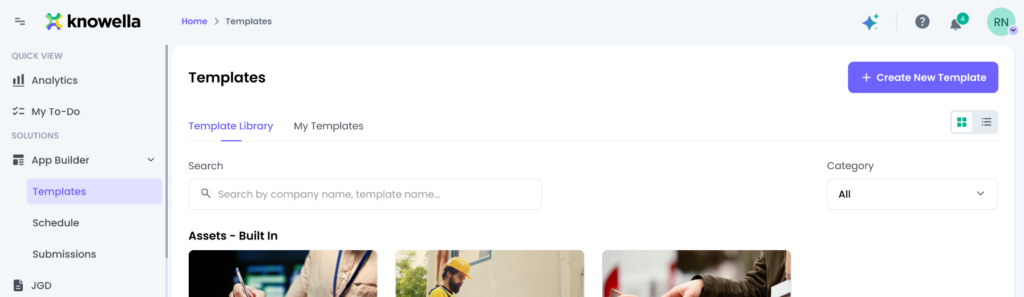
Step 3: Create a New Template
1. Inside App Builder, click on Create Template.
2. A new page will appear with the template creation process.
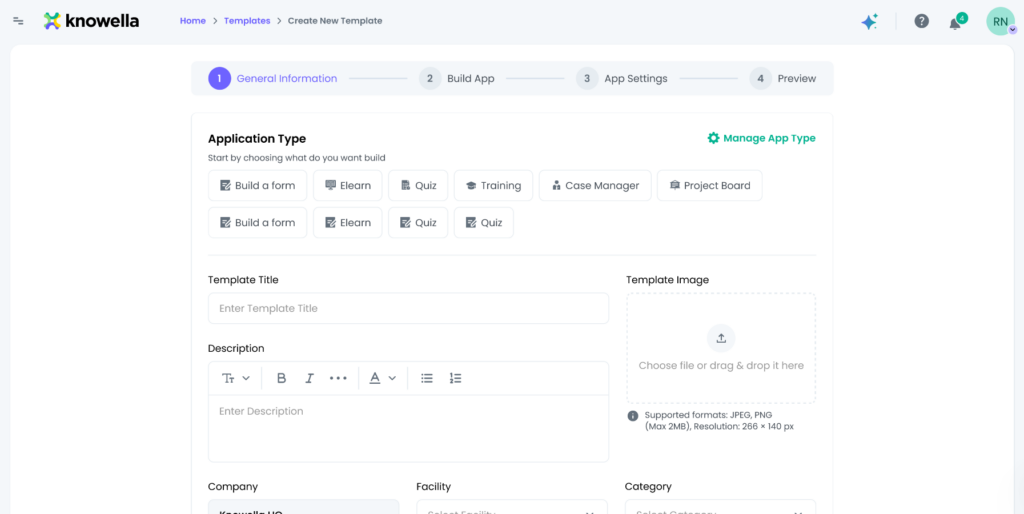
This page contains four main steps shown at the top.
Four Steps to Create a Template
The template creation process is divided into four steps:
1. General Information
2. Build App
3. App Settings
4. Preview
Step 1: General Information
In this step, you provide basic details about your template.
• Application Type: Choose the type of application (for example, Build a Form).
• Category: Select the appropriate category or add the module name.
• Template Title: Enter the form name.
• Description: Add a short and clear description explaining the purpose of the form.
• Template Image: Upload an image that represents the template.
After filling all the details, click on Next to proceed.
Step 2: Build App
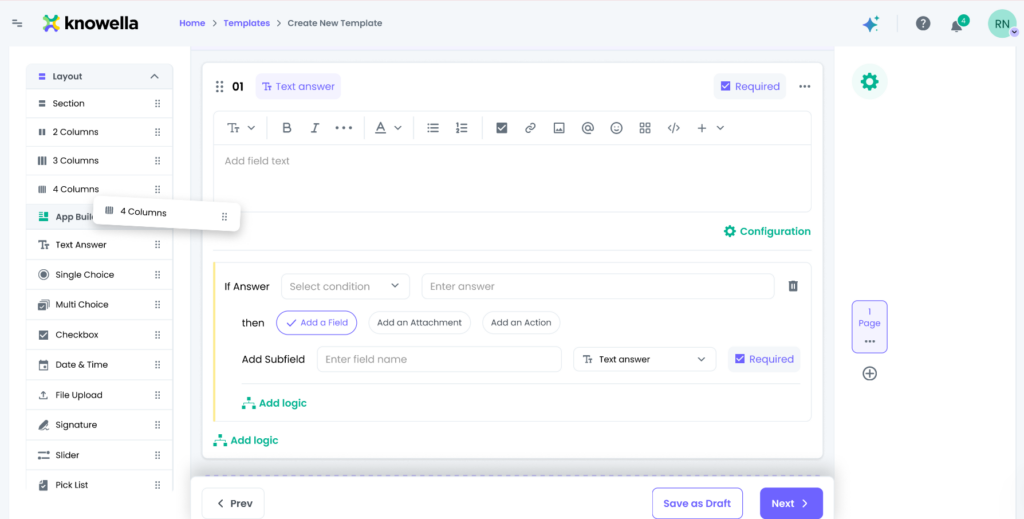
This step is used to design the form by adding questions and answers.
1. First, add a Section and give it a meaningful name.
2. Inside the section, add questions one by one.
3. For each question:
- Enter the question text.
- Choose the answer format (Text, Dropdown, Number, Slider, etc.).
- Click Done to save the question.
Optional Logic: You can add logic to questions if needed. For example, if the answer format is a dropdown with options Yes or No, you can add logic so that when Yes is selected, an attachment field appears.
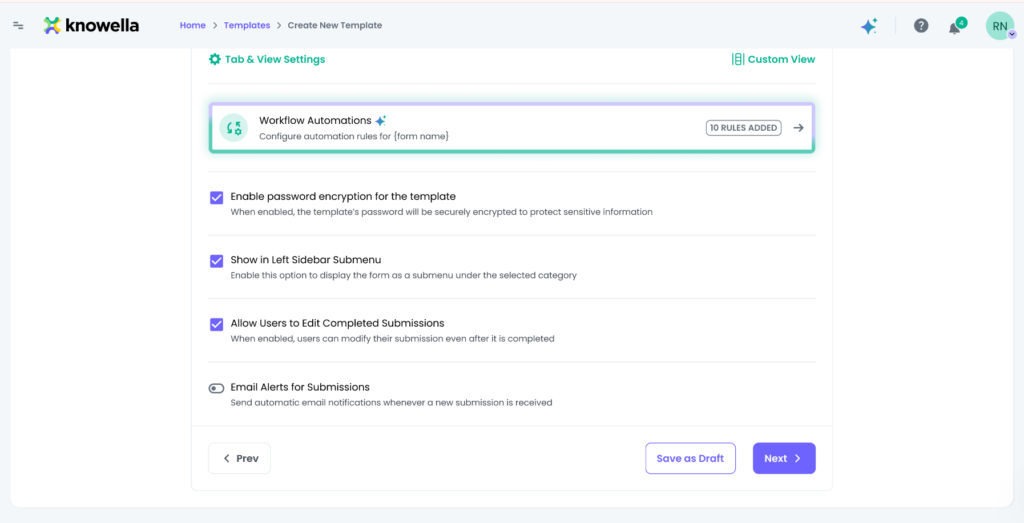
Step 3: App Settings
In this step, configure the settings for your app.
Here you can manage permissions, behavior, and other app‑related settings as required. Once settings are completed, click on Next.
Step 4: Preview and Publish
1.Preview the form to check how it will appear to users.
2. Verify all questions, sections, and logic.
3. If everything looks correct, click Publish to make the template available for use.
Conclusion
By following these simple steps, you can easily create a template in Knowella. Properly designed templates help users fill forms quickly and accurately, improving overall efficiency.