


Learn how to edit or delete schedules in Knowella to keep your assessments accurate and up to date.
Yes, schedules in Knowella can be edited or deleted at any time, depending on your requirements. This flexibility allows you to make changes to assessment schedules or remove them when they are no longer needed.
Where Can I Edit or Delete a Schedule?
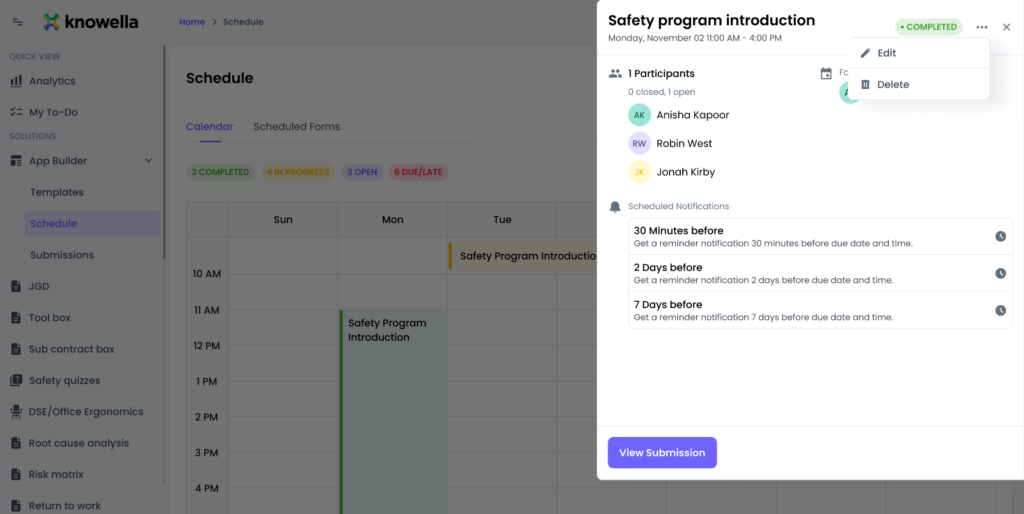
You can edit or delete schedules from the Scheduled Forms section under the Schedule module. Each scheduled assessment includes an Actions menu that provides options to view, edit, or delete the schedule.
How to Edit a Schedule
Follow these steps to edit an existing schedule:
- Navigate to App Builder from the left-side menu and click on Schedule
- Open the Scheduled Forms tab
- Locate the schedule you want to update
- Click on the Actions (three dots) icon next to the schedule
- Select Edit from the list
- Make the required changes, such as updating assignees, dates, frequency, or notifications
- Save your changes to update the schedule
How to Delete a Schedule
If a schedule is no longer required, you can delete it by following these steps:
- Go to App Builder and select Schedule
- Open the Scheduled Forms tab
- Find the schedule you want to remove
- Click on the Actions (three dots) icon
- Select Delete from the menu
- Confirm the deletion when prompted
Important Notes
- Editing a schedule updates future assignments based on the new settings
- Deleting a schedule removes it from the calendar and scheduled forms list
- Completed submissions are not affected unless explicitly removed
- Make sure you have the correct permissions to edit or delete schedules
Conclusion
Knowella makes it easy to manage your assessment schedules with simple edit and delete options. By using the Actions menu in Scheduled Forms, you can quickly update schedules to reflect changes or remove them when they are no longer required.
Need more help?
If you need assistance with template design or advanced features, contact: support@knowella.com