


Learn how App Settings control the behavior, security, and automation of your template in Knowella.
The App Settings section is the third step in template creation in Knowella.
After completing:
- General Information
- Build App
App Settings allow you to define how your form behaves once it is published.
This includes:
- Security and data protection
- User access and visibility
- Workflow automation
- Notifications and actions
What is the App Settings section?
App Settings control how users interact with your template after it is live.
These settings determine:
- Who can access the form
- What happens after submission
- Whether users can edit submissions
- How data is secured
Configuring these settings correctly ensures a smooth and controlled user experience.
App Settings fields explained
Below are the key settings available:
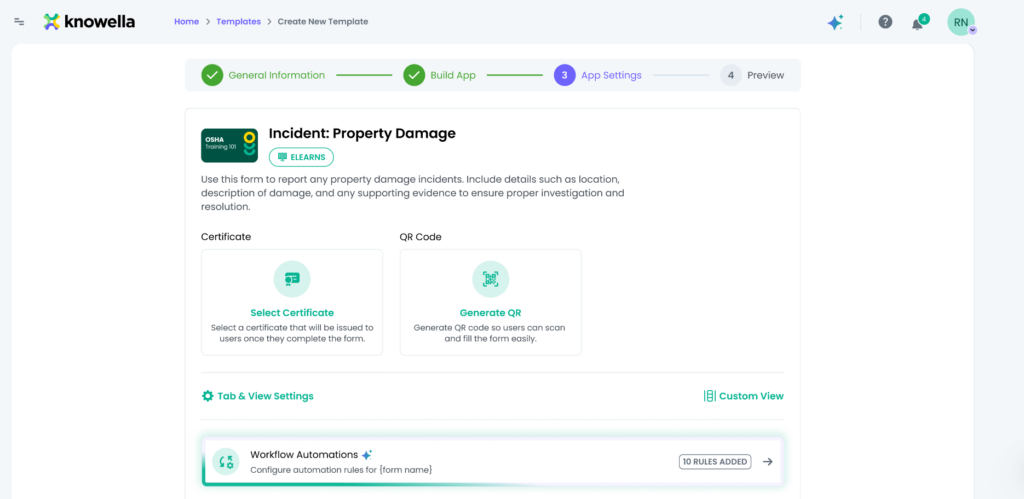
1. Certificate
This option allows you to issue a certificate after a form is completed.
How it works:
- Select an existing certificate template
- The certificate is generated automatically after submission
Use case:
Training completion, audits, or certification workflows
2. QR Code
This option generates a QR code for the form.
How it works:
- Users scan the QR code to open the form
- Enables quick and easy access without navigation
Use case:
On-site inspections, shop floor usage, field operations
3. Workflow Automations
Workflow Automations allow you to trigger actions automatically when a form is submitted.
Examples:
- Send notification emails
- Assign tasks to users
- Trigger approvals
- Start follow-up workflows
This reduces manual effort and ensures timely actions.
4. Enable Password Encryption
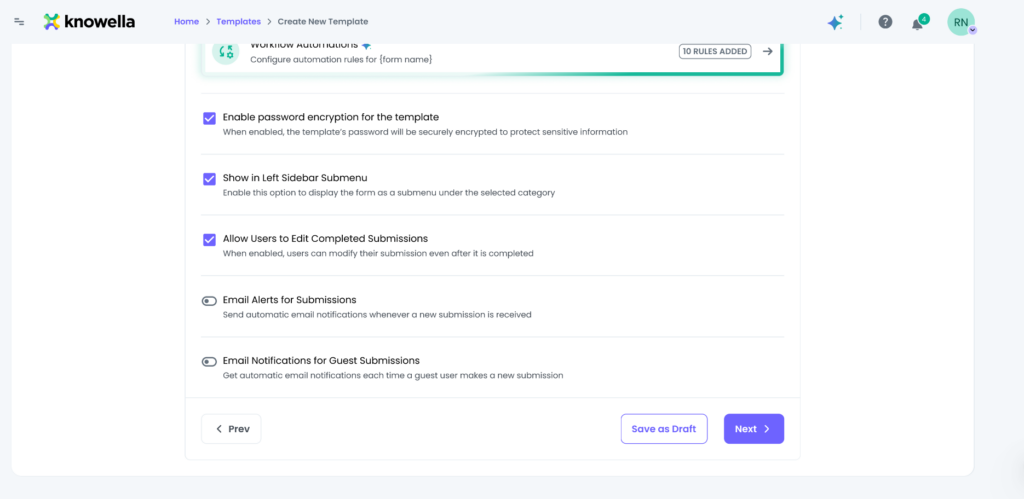
This setting encrypts the template and submitted data.
Benefits:
- Protects sensitive or confidential information
- Improves data security
Recommended for:
Forms involving critical, personal, or compliance-related data
5. Show in Left Sidebar Submenu
This option makes the form visible in the left sidebar under its category.
Benefits:
- Improves visibility
- Makes forms easier to access
- Enhances navigation for users
6. Allow Users to Edit Completed Submissions
This setting allows users to update their submitted entries.
Benefits:
- Enables corrections or updates
- Useful for ongoing or evolving data
Note:
Should be enabled based on business rules and control requirements.
7. Email Alerts for Submissions
This option enables email notifications whenever a form is submitted.
Benefits:
- Keeps stakeholders informed
- Enables faster response and follow-up
Navigation options
At the bottom of the App Settings screen, you will see:
- Prev → Go back to the Build App step
- Save as Draft → Save the template without publishing
- Next → Move to the Preview step
Best practices
To get the most out of App Settings:
- Enable only the settings relevant to your use case
- Use encryption for sensitive forms
- Test automation workflows before publishing
- Carefully review edit permissions
- Use email alerts for critical workflows
Why this matters
App Settings define how your template behaves in real-world use.
Configuring them correctly helps ensure:
- Secure data handling
- Efficient workflows
- Better user experience
- Reduced manual intervention
Need more help?
If you need assistance with App Settings or template configuration, contact: support@knowella.com