


Learn how to use conditional logic to create smarter, dynamic forms that show only relevant fields based on user responses.
Conditional Logic allows you to control how your form behaves based on user input.
It works on a simple principle:
“If this happens → then show or trigger something else.”
This helps you create forms that are cleaner, more intuitive, and easier to complete.
What is Conditional Logic?
Conditional Logic lets you define rules that determine when certain fields or sections appear.
Instead of showing all questions at once, the form adapts based on user responses.
Examples:
- If answer = Yes → show Upload Image field
- If a dropdown option is selected → show additional questions
- If a condition is not met → hide unnecessary fields
Why use Conditional Logic?
Using conditional logic improves both usability and data quality.
Benefits include:
- Showing only relevant questions
- Reducing clutter in forms
- Improving user experience
- Increasing data accuracy
- Making forms more dynamic and efficient
Steps to create Conditional Logic
Follow these steps to add conditional logic to your template:
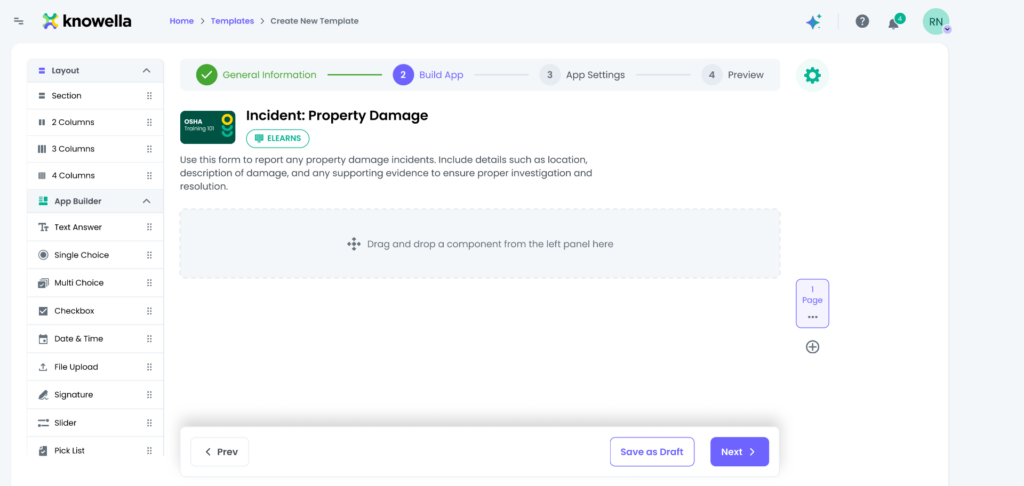
Step 1: Create or edit a Template
- Log in to the Knowella platform
- Click the menu icon on the left-hand side
- Go to App Builder
- Create a new template or open an existing one
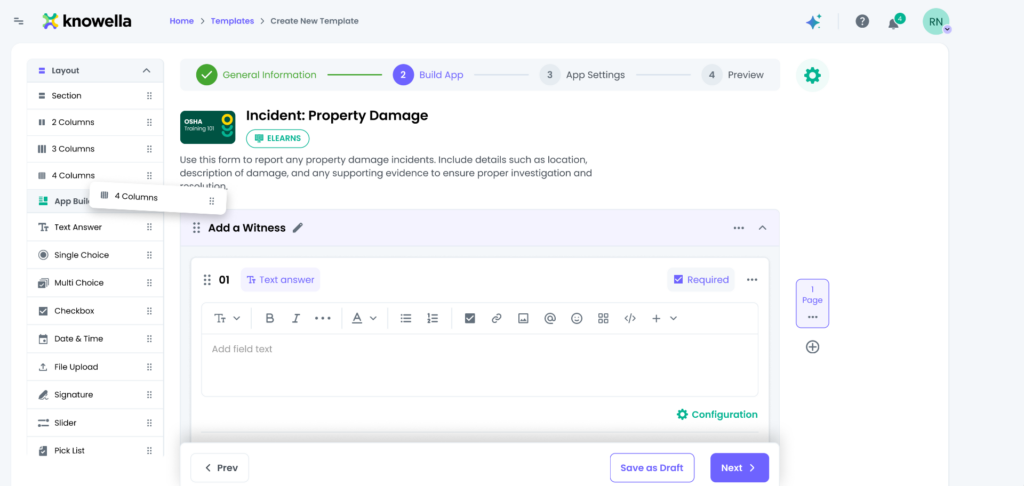
Step 2: Add sections and questions
- Add a section to your form
- Add questions inside the section
- Choose the field type for each question, such as:
- Single dropdown
- Multi-select dropdown
- Text
- Number
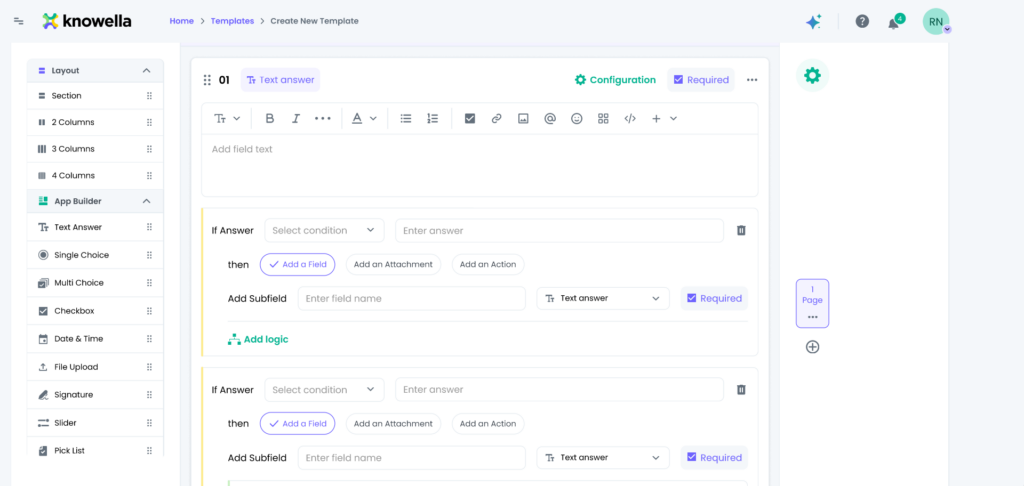
Step 3: Add Conditional Logic
- Select the question you want to apply logic to
- Scroll to the question settings
- Click Add Logic
- Define your condition
Examples:
- If Question Value = Yes → Show Upload Image field
- If Dropdown Option = Selected → Show another section
Step 4: Save and test the logic
- Save your logic rule
- Use Preview mode to test the form
- Verify that fields appear correctly based on user input
Example of Conditional Logic
Question:
Is there any damage? (Yes / No)
Logic rule:
- If answer = Yes → Display Upload Image field
- If answer = No → Hide Upload Image field
This ensures users only see relevant fields.
Best practices
To use conditional logic effectively:
- Keep logic rules simple and easy to understand
- Test all conditions before publishing
- Avoid adding too many layered conditions
- Use clear and consistent naming for fields
- Design logic with the end-user experience in mind
Why this matters
Conditional logic transforms static forms into smart, interactive workflows.
Using it correctly helps:
- Reduce form complexity
- Improve completion rates
- Capture more accurate data
- Create a better user experience
Need more help?
If you need assistance with conditional logic or template setup, contact: support@knowella.com