


Learn how to assign scores to form responses and turn your templates into powerful evaluation and assessment tools.
Scoring allows you to assign numeric values to responses in a form.
This helps you evaluate submissions, calculate results, and measure performance directly within Knowella.
What is Scoring in Knowella?
Scoring enables you to assign points to user responses.
Each answer can carry a specific score, and the total score can be used for:
- Assessments and audits
- Performance evaluation
- Compliance tracking
- Reporting and insights
When can you add scoring?
Scoring is configured during Step 2: Build App in template creation.
It is applied at the field level after adding sections and fields.
Where is the scoring option available?
The scoring option appears within each field’s configuration.
Once you add a field inside a section, you can:
- Open the Configuration panel
- Enable and customize scoring
Steps to add scoring
Follow these steps:
- Log in to the Knowella platform
- Open App Builder
- Create a new template or edit an existing one
- Complete the General Information step
- Move to the Build App step
- Add a Section from the Layout panel
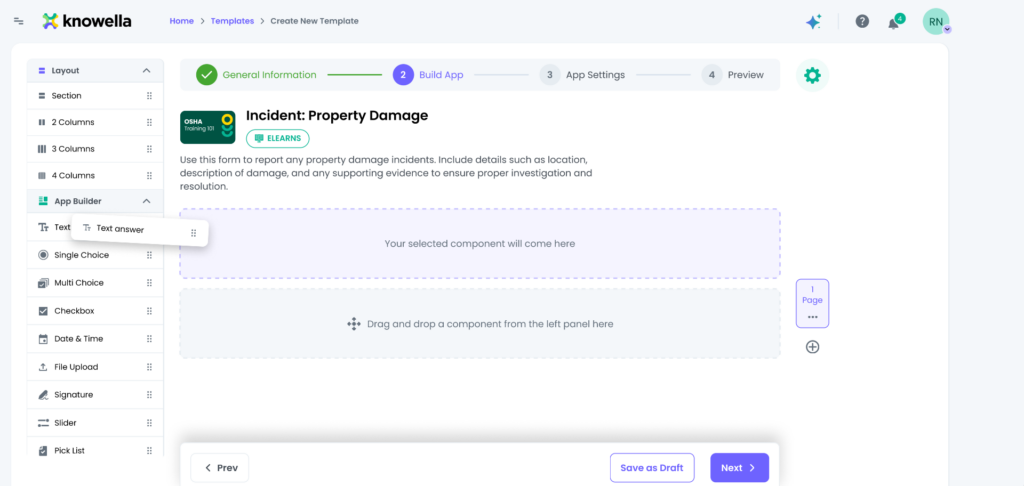
- Add a field (e.g., Single Choice, Text Answer)
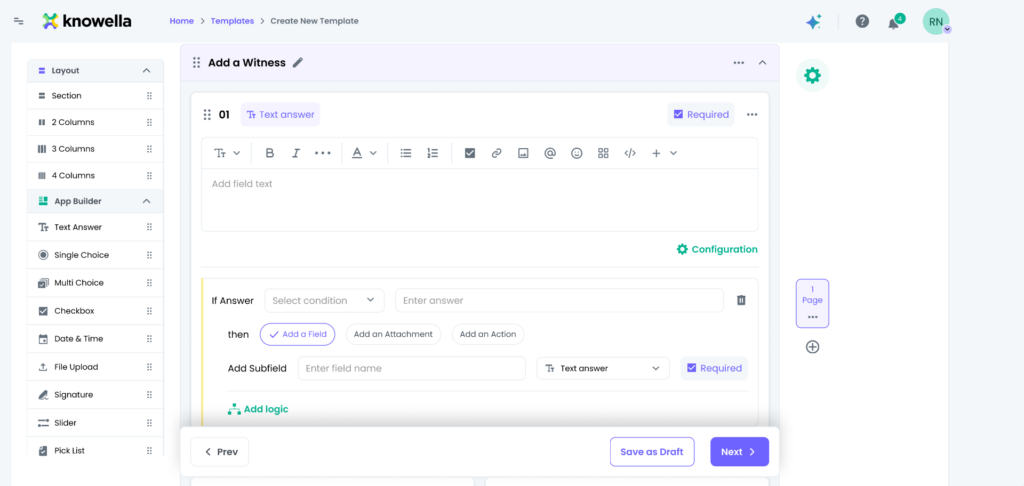
- Click on the field’s Configuration option
- Locate and enable Scoring
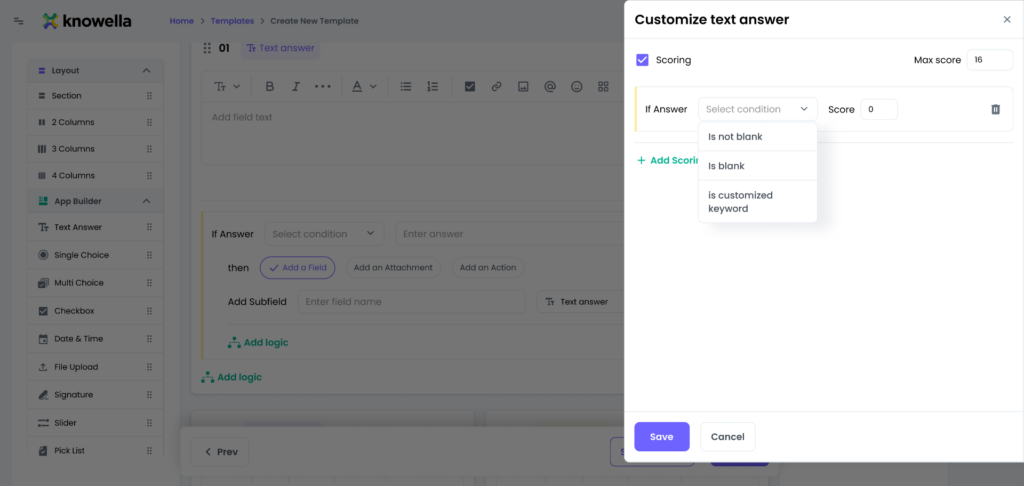
How to configure scoring
Once scoring is enabled, you can define how scores are assigned:
- Set IF conditions (e.g., based on selected answers)
- Assign a score for each condition
- Define the maximum score for the field
- Add multiple scoring rules if needed
Example
Question: Is safety equipment available?
- Yes → Score: 10
- No → Score: 0
Selecting “Yes” gives full points, while “No” gives zero.
How are scores used?
Scores collected from fields can be used to:
- Calculate the total score of a submission
- Evaluate performance or compliance levels
- Generate reports and analytics
- Support audits, inspections, and training assessments
Best practices
To use scoring effectively:
- Add scoring only to relevant fields
- Keep scoring logic simple and clear
- Define maximum scores carefully
- Test scoring using Preview mode before publishing
Why this matters
Scoring transforms forms into structured evaluation tools.
Using it correctly helps:
- Standardize assessments
- Improve decision-making
- Track performance consistently
- Generate actionable insights
Need more help?
If you need assistance with scoring or template configuration, contact: support@knowella.com