


Table of Contents
Learn how to safely delete a template that is no longer needed in Knowella.
Deleting a template allows you to remove unused or outdated forms from the system. This helps keep your App Builder organized and ensures users only see relevant templates.
Prerequisites
Only users with the required permissions can delete templates.
Typically, this includes:
- Company Admin
- Facility Admin
If you do not have access, contact your administrator.
Steps to delete a Template
Follow these steps to delete a template:
Step 1: Navigate to Templates
- Log in to the Knowella platform
- Click the menu icon on the left-hand side
- Go to App Builder
- Click on Templates
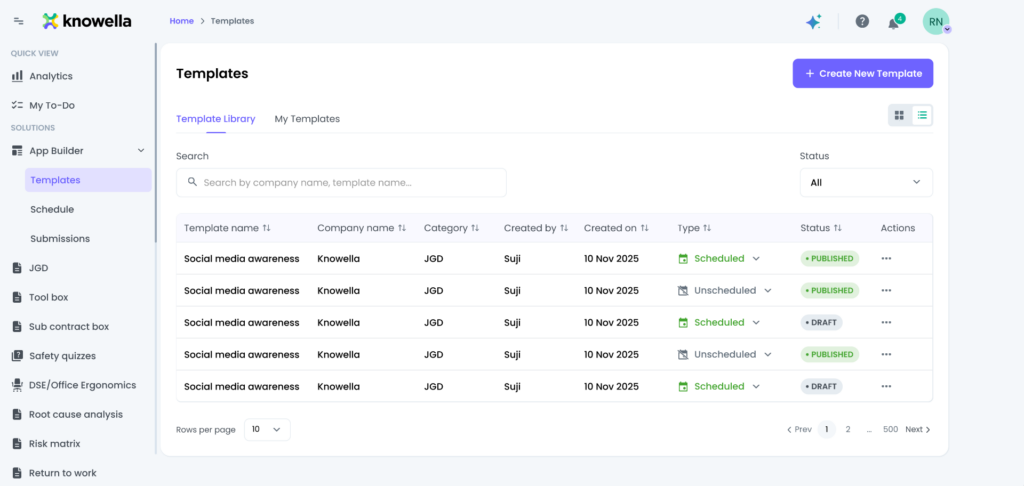
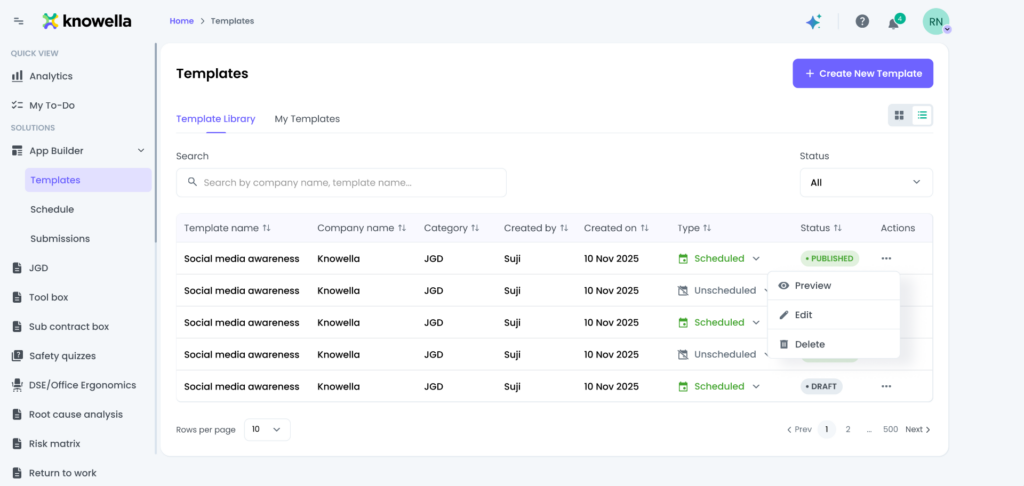
Step 2: Delete the Template
- View the list of available templates
- Locate the template you want to delete
- Click the three dots (⋮) next to the template
- Select Delete
- Confirm the deletion
Result
Once confirmed, the selected template will be permanently removed from the system.
Important notes
- Deleting a template is permanent and cannot be undone
- Ensure the template is no longer required before deleting it
- Review templates carefully if they are actively used in workflows
- Deleting a template does not affect previously submitted records, but it removes future usage
Best practices
To manage templates effectively:
- Archive or review templates before deleting
- Avoid deleting templates that are still in use
- Keep only relevant and updated templates in the system
Maintaining a clean set of templates helps:
Why this matters
- Improve usability for end users
- Reduce confusion
- Keep your system organized and efficient
Need more help?
If you need assistance with template management, contact: support@knowella.com