


Learn how to customize the look and feel of your forms using Form Color Settings in Knowella.
Form Color Settings allow you to customize the visual appearance of your forms while building a template.
Using these settings, you can adjust background and text colors to:
- Improve readability
- Enhance user experience
- Align forms with your organization’s branding
What are Form Color Settings?
Form Color Settings let you control how your form looks to users.
You can modify colors for different elements of the form to make it:
- Easier to read
- Better structured
- Visually consistent
This is especially useful for long or complex forms where clarity matters.
When can you configure Form Color Settings?
Form Color Settings are available during the Build App phase of template creation.
Once you start building your form and adding sections or fields, you can access and update color settings at any time.
How to open Form Color Settings
Follow these steps to access color settings:
- Log in to the Knowella platform
- Go to App Builder
- Create a new template or open an existing one
- Navigate to the Build App step
- Click the Settings (⚙️) icon on the right-hand side
- The Form Color Settings panel will open
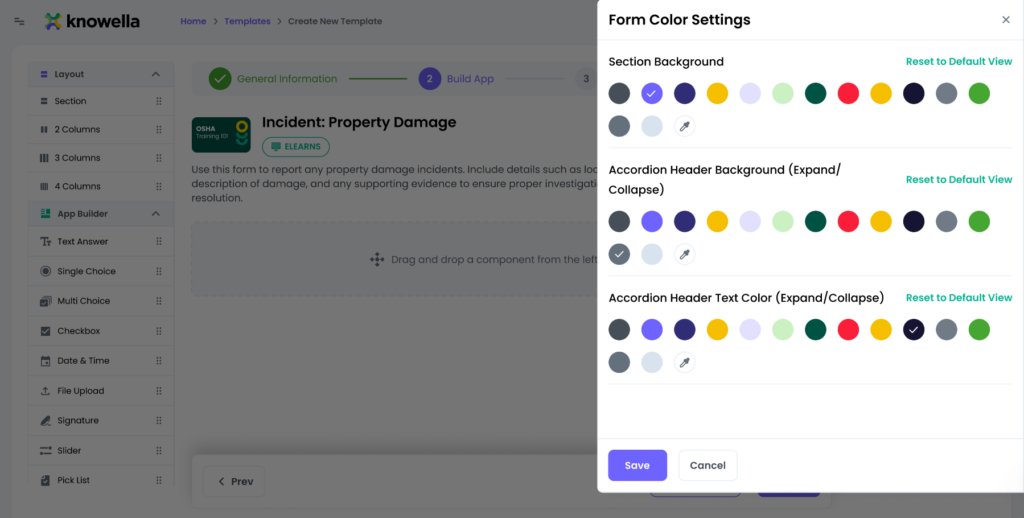
Form Color Settings options
1. Section Background Color
This setting allows you to change the background color of form sections.
Benefits:
- Visually separates different sections
- Improves readability for longer forms
2. Accordion Header Background (Expand / Collapse)
This controls the background color of section headers when sections are expandable or collapsible.
Benefits:
- Makes section headers more visible
- Helps users easily identify expandable sections
3. Accordion Header Text Color (Expand / Collapse)
This allows you to change the text color of section headers.
Benefits:
- Ensures good contrast between text and background
- Improves accessibility and readability
Save or reset changes
After making updates:
- Click Save to apply the selected colors
- Click Reset to Default View to restore original settings
- Click Cancel to discard changes
Best practices
To design clean and effective forms:
- Use light background colors for better readability
- Ensure strong contrast between text and background
- Avoid using too many bright or distracting colors
- Keep colors consistent with your brand guidelines
Why this matters
Well-designed forms improve usability and completion rates.
Using Form Color Settings helps you:
- Create visually clear forms
- Reduce user confusion
- Improve overall user experience
Need more help?
If you need assistance with form design or template settings, contact: support@knowella.com